HW1
1. VirtualBox Installation
To install VirtualBox, download the software from the official website: VirtualBox Downloads.
During the installation, you may encounter the following error message:
“Missing Dependencies: Python Core / win32api”
This issue may arise under the following circumstances:
-
Python is not installed:
If Python is not already installed on your PC, download and install it from the official Python website: Python Downloads for Windows. -
Python is installed, but dependencies are missing:
If Python is already installed, try to run the following command in the Command Prompt (cmd) to resolve the issue:pip install pywin32
2. Create a New Virtual Machine of Ubuntu
Download the pre-built SEED Ubuntu 20.04 VM from the following website: SEED Ubuntu 20.04 VM.
When creating a new virtual machine in VirtualBox, you can skip the ISO image selection since you will be using a pre-built VM in the VDI format.
Make sure to set the Type to Linux.
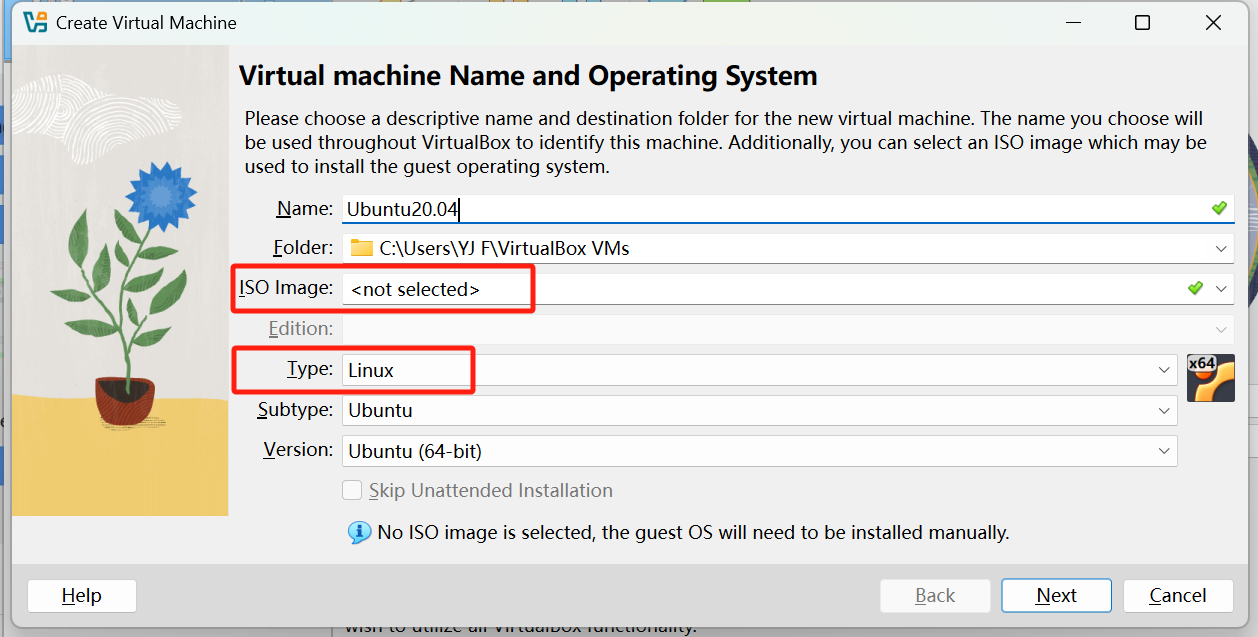
Next step is allocating dedicated memory for the VM. 1024 MB should be sufficient.
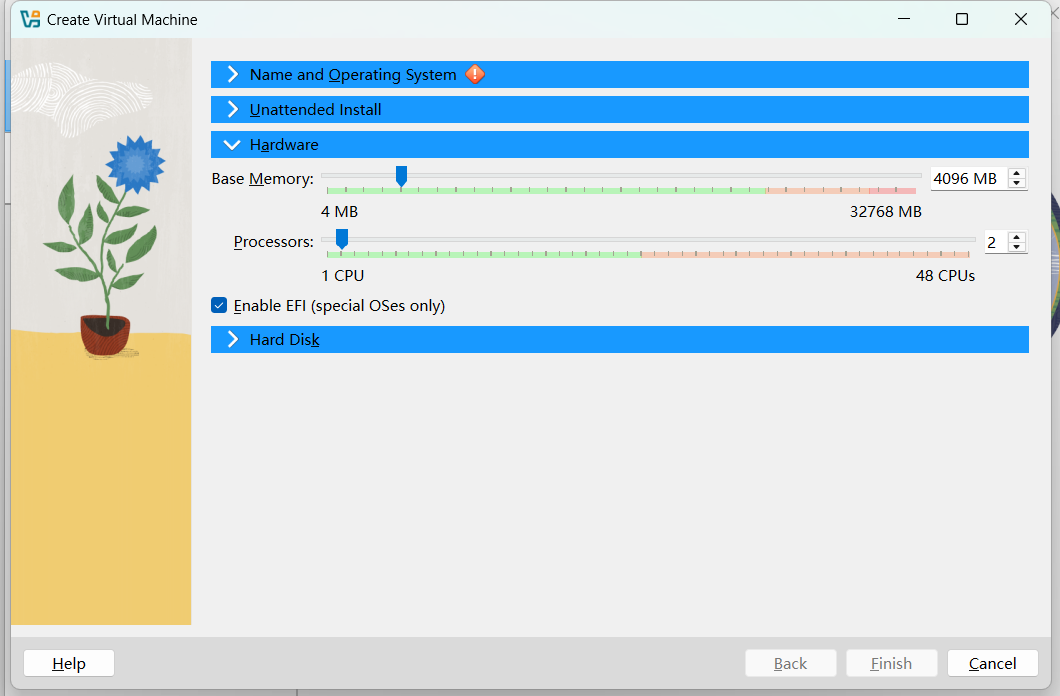
The allocation depends on your computer’s available memory -- If your computer has more RAM, you can increase accordingly. The more memory you give to the VM, the better the performance you will get.
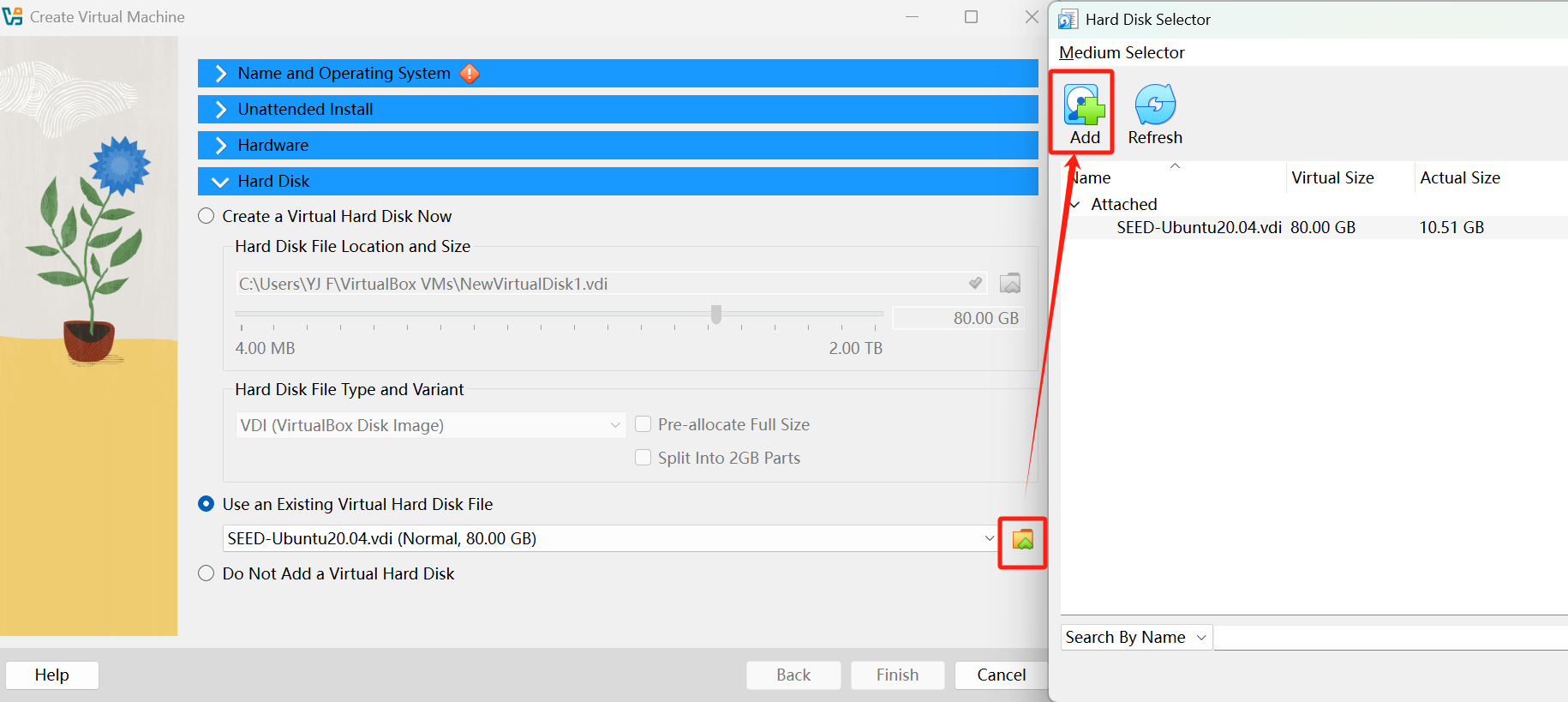
Select the "Use an Existing Virtual Hard Disk File" option and add the downloaded SEED Ubuntu 20.04 VDI file.
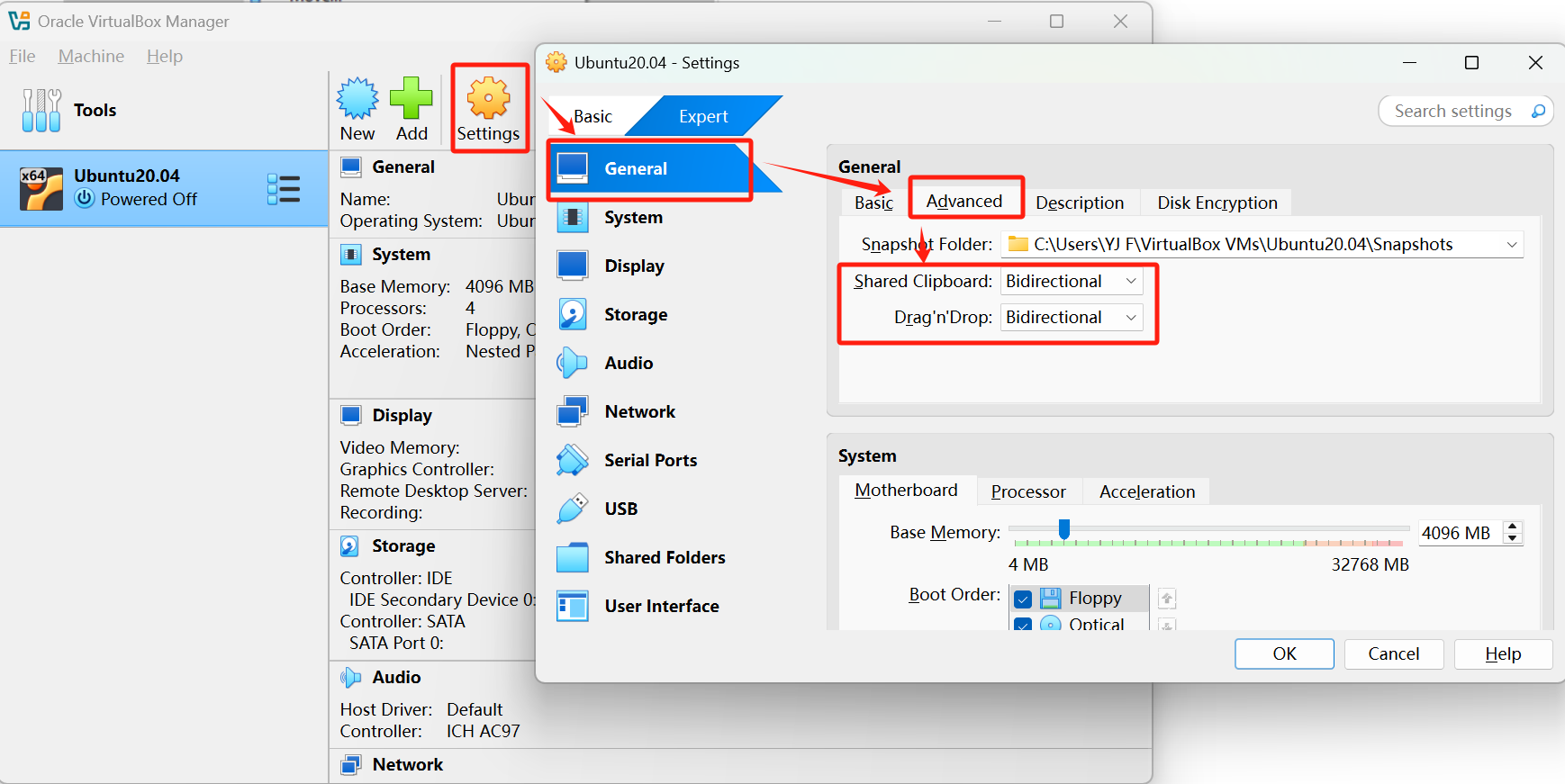
After the VM is created, we need to modify some settings to enable the following features:
- copy and paste between the host and the VM
- drag and drop files between the host and the VM
Follow the steps shown below to enable these features:
3. Configure ~/.bashrc
To configure ~/.bashrc to display the date and your name in the terminal prompt, follow these steps:
-
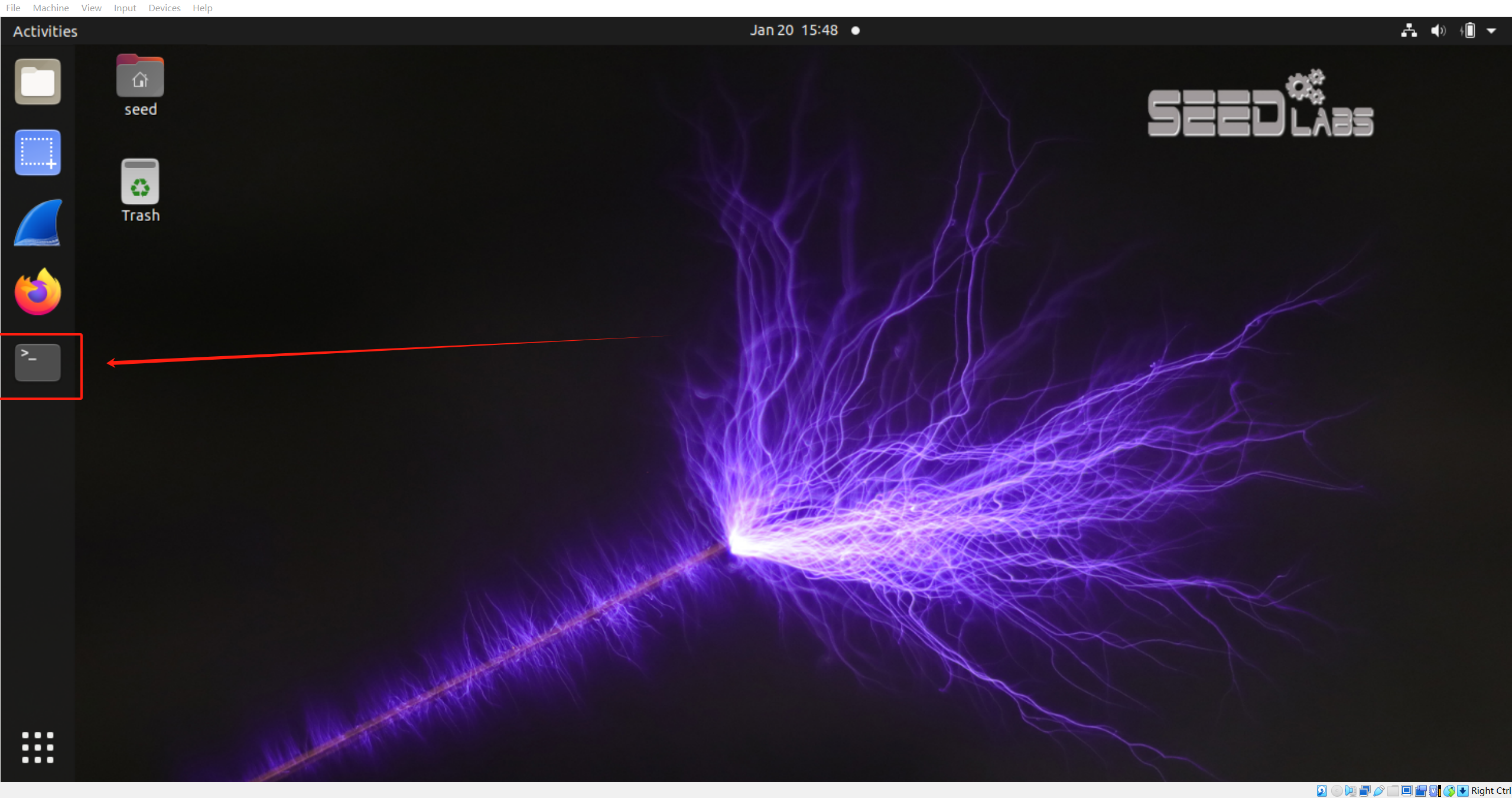
Open the terminal in the VM:
-
Open the .bashrc file in a text editor (Here, we use nano as the example):
nano ~/.bashrc -
Add a line at the end of the file to modify the
PS1variable, to display the date and the username in the terminal prompt:PS1='\[\e]0;\u@\h: \w\a\][`date "+%D"`]${debian_chroot:+($debian_chroot)}\[\033[01;32m\]\u@\h\[\033[00m\]:\[\033[01;34m\]YOUR_NAME_HERE\[\033[00m\]\$' -
What is
PS1? What is the format of thePS1variable?PS1stands for Prompt String 1, which stands for primary prompt that determines the content and format of the prompt displayed in the terminal.- The format of the
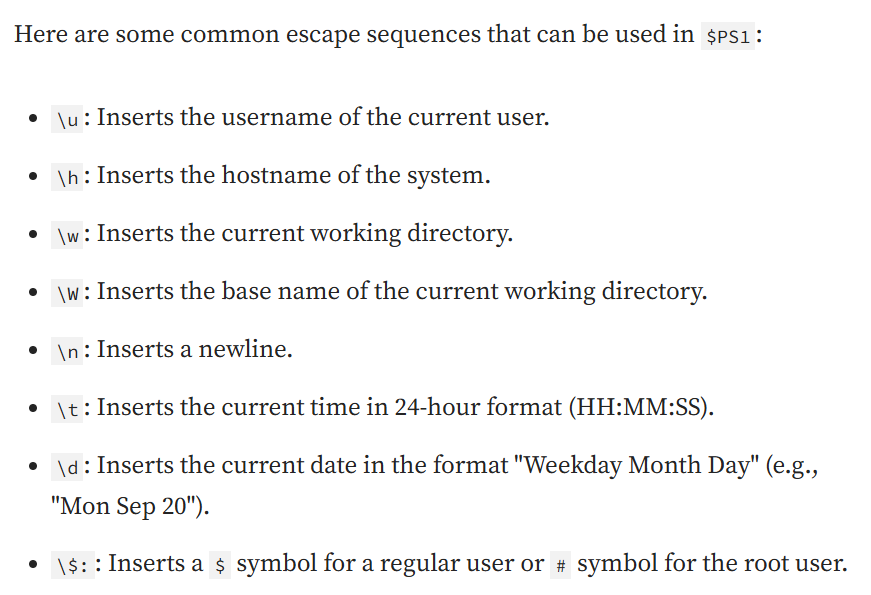
PS1variable is a string that contains escape sequences and special characters to display information such as the current working directory, username, hostname, and date in the terminal prompt:
Reference: What is the $PS1 Variable in Linux — Unix_Medium.com
-
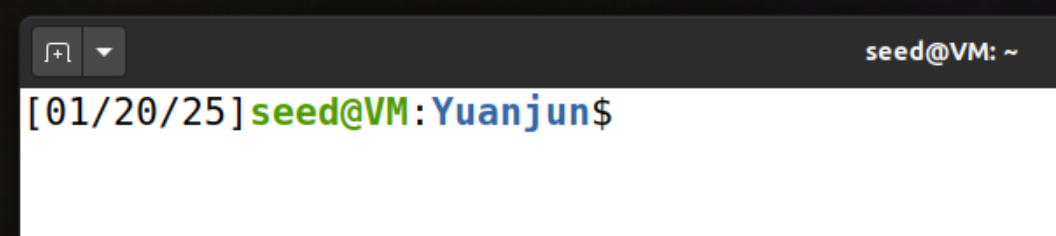
The modified terminal prompt will appear as follows:
4. Take a Snapshot
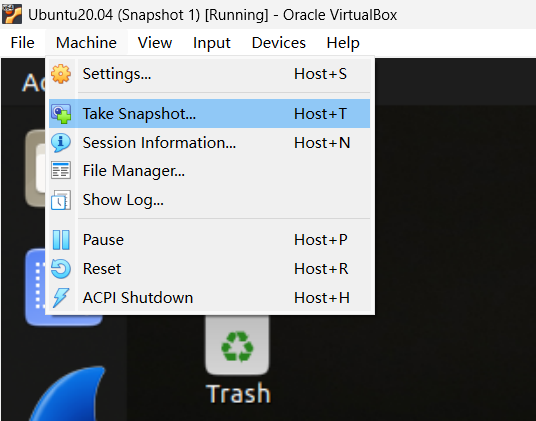
To take a snapshot of the VM, choose the "Take Snapshot" option from the "Machine" menu in VirtualBox:
5. Facilitate Grading
To facilitate the grading work, I will show the prompt for possible points one by one according to the rubric in this section.
| Possible points | Rubric item | Prompt |
|---|---|---|
| 2 | Successful installation and configuration of the VM. You must include a screenshot showing your prompt to get this credit. | 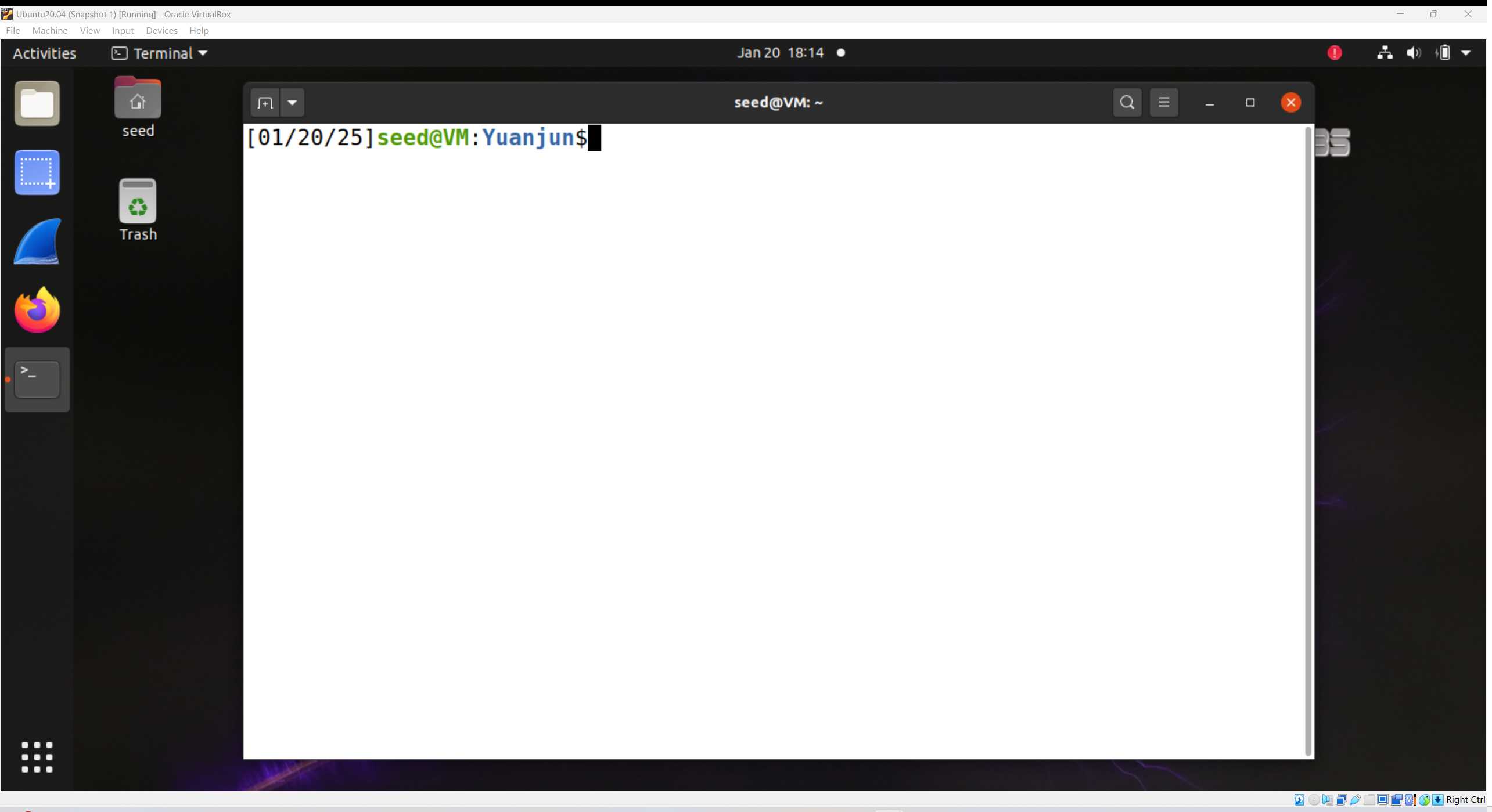 |
| 1 | A snapshot was taken. Take a screenshot of your snapshot. | 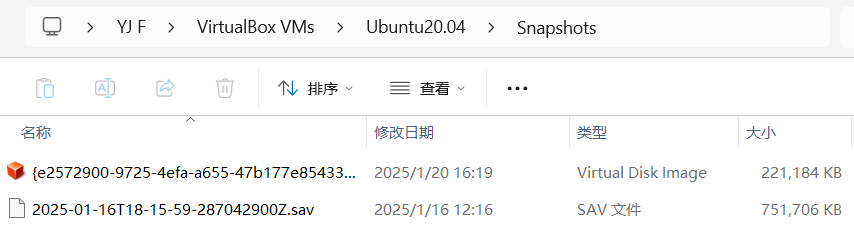 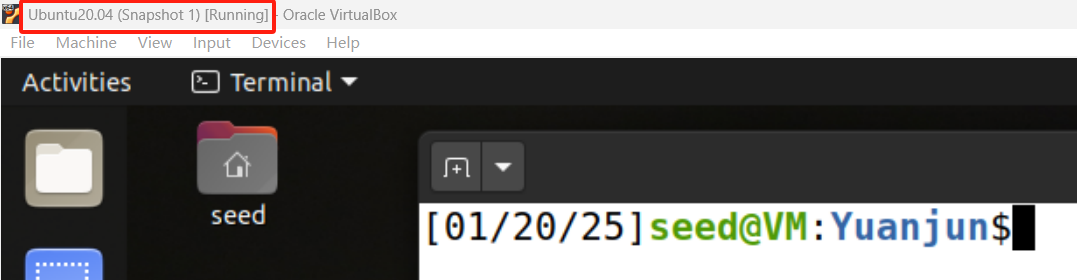 |
| 2 | Sufficient documentation and repeatable notes. Hence, someone* else can reproduce your work. *someone else refers to another student taking this course, not a random person who never used a computer before. You don’t have to provide basic instructions such as how to open a browser or how to open a folder. | Documentation included above |